

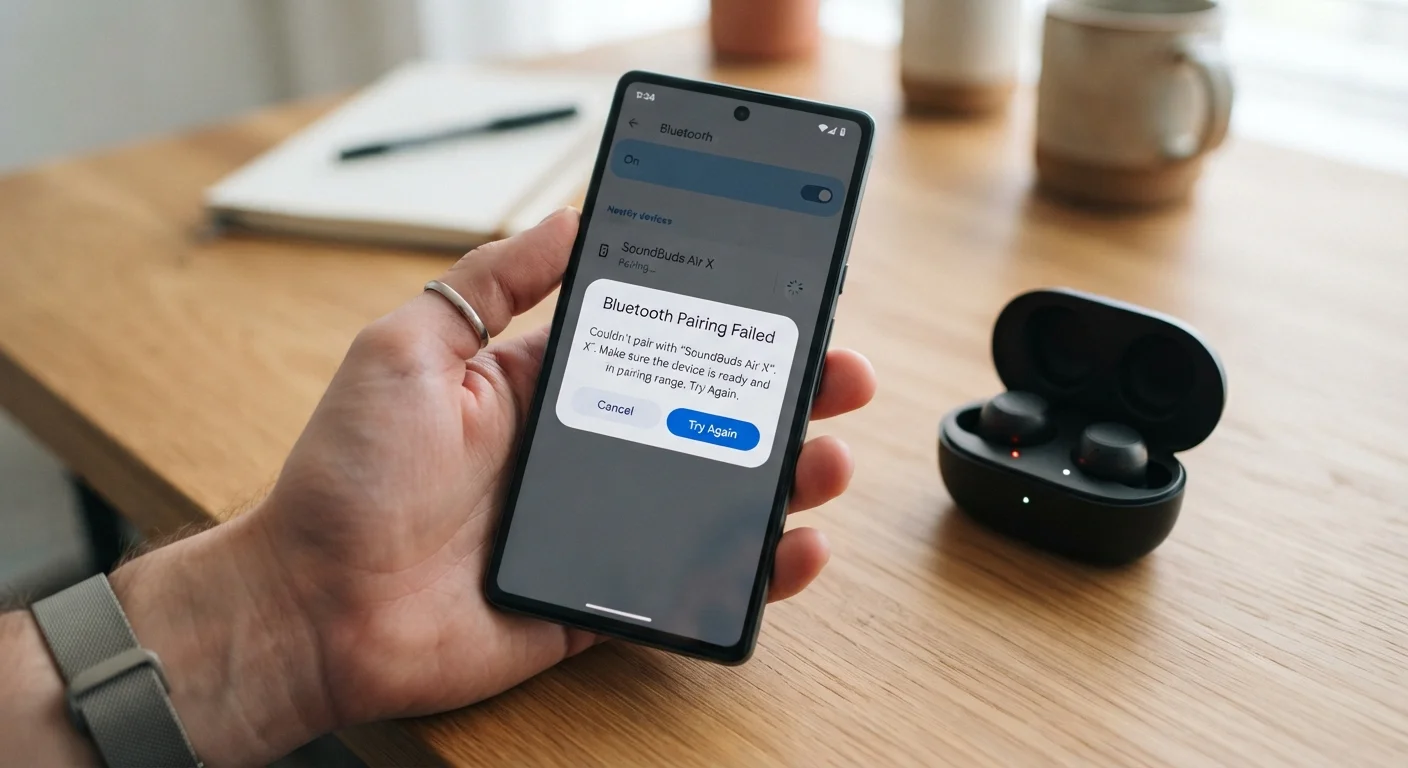
Key Takeaways
- Most Bluetooth pairing failures are caused by cached pairing data, device distance, or radio interference.
- Forgetting the device on both ends and re-pairing from scratch resolves the majority of failures.
- Keeping both devices updated reduces compatibility issues that block successful pairing.
- Persistent failures may indicate a hardware limitation or a deeper software problem worth escalating.
What you will need
Why Bluetooth Pairing Fails
Bluetooth pairing failures fall into a small number of root-cause categories: stale cached data, radio interference, mode or timing errors, and software mismatches. Understanding which category applies to your situation lets you skip irrelevant steps and reach a fix faster.
Cached pairing records are the most frequent culprit. Both your phone and the accessory store a unique identifier for each device they have previously connected with. If that record becomes corrupted — through a software update, a battery drain, or a factory reset on one side — the two devices no longer recognize each other correctly, causing authentication to fail silently.
Radio interference is the second most common cause. Bluetooth uses the 2.4 GHz spectrum, which it shares with Wi-Fi, baby monitors, and other wireless devices. Heavy congestion in that band can prevent the initial handshake from completing. If you have experienced ongoing wireless issues, see our guide on troubleshooting a slow or dropping Wi-Fi connection for broader context on 2.4 GHz interference.
Finally, software version mismatches — including outdated accessory firmware or an unpatched phone OS — can create Bluetooth profile incompatibilities that block pairing entirely. The steps below address all of these scenarios in order of effort, starting with the quickest fixes.
What you will need
Step-by-Step: Restoring a Failed Bluetooth Pairing
Work through these steps in order. Most users find resolution by step three or four. If you have already tried basic toggles without success, skip ahead to step two.
Your primary device (phone, tablet, or computer)
The host device initiating the Bluetooth pairing request.
Bluetooth accessory
The peripheral you are attempting to pair, such as headphones or a speaker.
Accessory user manual or manufacturer support page
Provides model-specific pairing instructions and reset procedures.
Toggle Bluetooth off and back on
Open your device's Settings and navigate to Bluetooth. Turn the toggle off, wait five seconds, then turn it on again. On the accessory side, power it off completely and power it back on. This clears temporary radio state errors that can block discovery without requiring any deeper changes.
Forget the device and remove saved pairings
Stale pairing records are a leading cause of repeated failures. On your phone or computer, open Bluetooth settings, find the accessory in the list of paired or known devices, and select Forget (Android/Windows) or Forget This Device (iOS/macOS). If the accessory stores pairing history itself, consult its manual for a factory or pairing reset — this typically involves holding a button combination until an LED flashes a specific color. Once both ends are cleared, attempt a fresh pairing.
Reduce distance and eliminate interference
Move the two devices within one meter (about three feet) of each other for the initial pairing. Bluetooth operates on the 2.4 GHz radio band, shared with Wi-Fi routers, microwave ovens, and some cordless phones. Try pairing away from these sources. Solid walls and metal surfaces can also attenuate the signal enough to prevent a successful handshake.
Confirm the accessory is in active pairing mode
Many accessories only enter pairing mode for 30–60 seconds after you trigger it, then time out. Check your manual for the exact pairing-mode activation method — it is often a long press on a dedicated button. LED indicators usually blink rapidly in pairing mode versus a slower pulse during standby. If the light has stopped blinking, re-trigger pairing mode and attempt to connect immediately.
Update software on both devices
Outdated firmware on an accessory or an older OS version on your phone can introduce Bluetooth profile mismatches. On your phone or computer, check for pending system updates in Settings > General > Software Update (iOS) or Settings > System > Software Update (Android). For accessories, check the manufacturer's companion app or support page for firmware update instructions. Install any available updates, then retry pairing.
Restart your device and try pairing again
A full device restart clears the Bluetooth stack — the software layer managing all Bluetooth communication — along with any background processes that may be interfering. Power off your phone or computer completely, wait 15 seconds, then power it back on. Put the accessory into pairing mode again and attempt the connection fresh.
Reset network settings as a last resort
If all previous steps fail, resetting network settings removes all saved Wi-Fi passwords, VPN configurations, and Bluetooth pairings, returning those subsystems to factory defaults. On iOS: Settings > General > Transfer or Reset iPhone > Reset > Reset Network Settings. On Android the path varies by manufacturer but is typically found under Settings > General Management > Reset > Reset Network Settings. After the reset, re-enter your Wi-Fi credentials and attempt Bluetooth pairing from scratch.
Still Failing? Try Another Host Device
If the accessory pairs successfully with a different phone or computer, the problem is isolated to your original device's Bluetooth hardware or software configuration. If it fails on every device you test, the accessory itself is likely defective. This quick test saves significant troubleshooting time.
Avoid Pairing in Crowded Radio Environments
Offices, apartments, and public spaces with dozens of active Wi-Fi networks create heavy 2.4 GHz congestion. Initial Bluetooth pairing is especially sensitive to this interference. If you consistently struggle to pair in one location but succeed in another, radio congestion is almost certainly a factor rather than a device fault.
Check Bluetooth Version Compatibility
Bluetooth is backward compatible within limits — but very old accessories using Bluetooth 2.x may not pair reliably with modern devices optimized for Bluetooth 5.x. Check the Bluetooth version listed in your accessory's specifications and compare it with your device's supported range. If there is a wide generational gap, some features or the pairing itself may not function as expected.
If the accessory continues to fail after completing all seven steps, the issue may involve less obvious causes such as codec conflicts or OS-level driver problems. Our companion article on Bluetooth pairing failures most guides don't mention explores those scenarios in depth.
Once you achieve a stable pairing, if your device begins dropping the connection during use, that is a separate but related issue covered in our article on reasons your Bluetooth keeps disconnecting mid-use.