

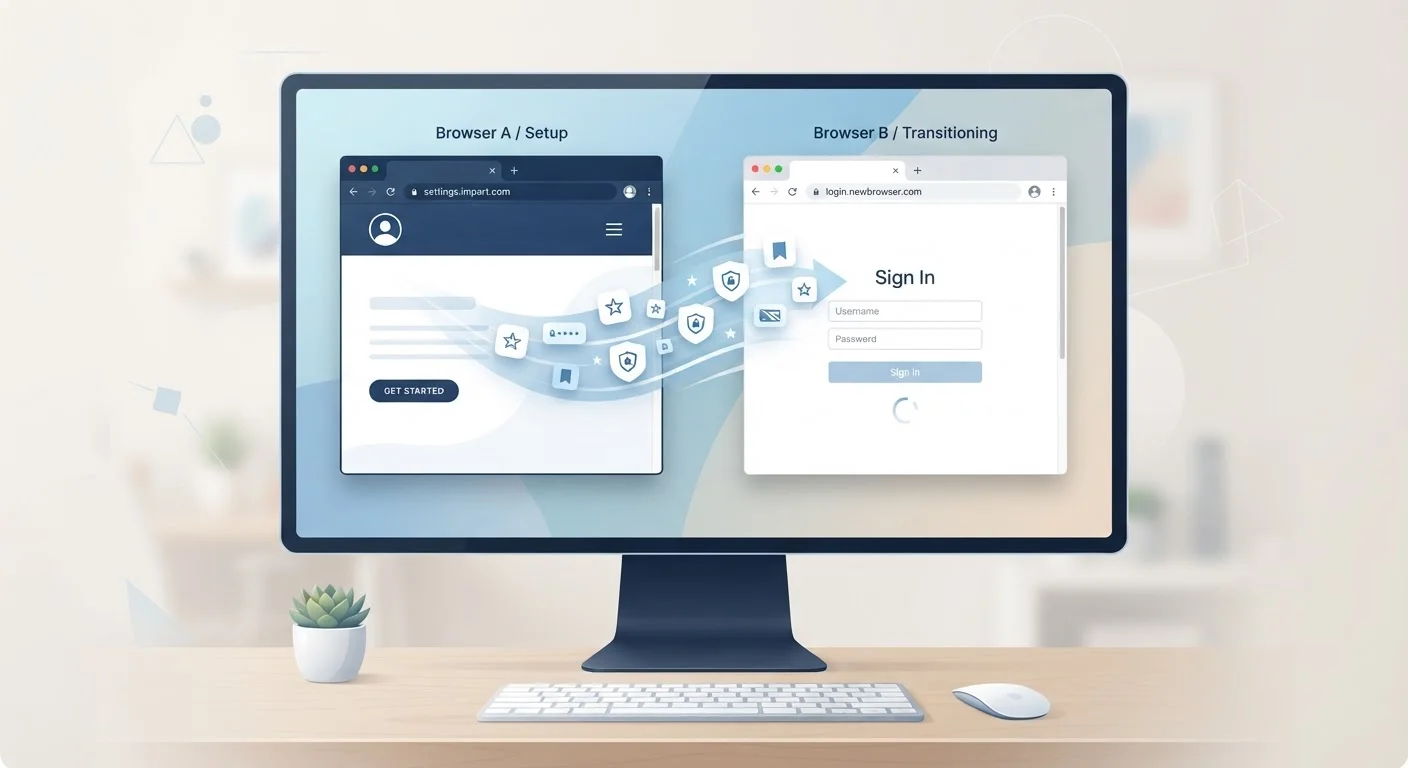
Key Takeaways
- Bookmarks and saved passwords can usually be imported, but the process requires deliberate action before you switch.
- Browser extensions do not transfer — you must reinstall each one manually in the new browser.
- Site-specific settings, autofill data, and local browsing history are almost never carried over automatically.
- Signing into a browser account syncs some data, but only within that browser's ecosystem.
- Exporting your data before switching protects you from permanent loss.
What you will need
What Actually Transfers When You Switch Browsers
Switching browsers feels like it should be simple — you're just changing an app. In practice, your browser holds a surprising amount of personal data, and different categories of that data travel very differently. Understanding the distinction upfront prevents unpleasant surprises.
What can move with you: Bookmarks and saved passwords are the two most portable data types. Both can be exported from your current browser and imported into a new one, though the process requires a few deliberate steps rather than happening automatically. Some browsers also attempt to import browsing history from an existing installation, with varying success.
What you'll need to handle manually: Extensions must be reinstalled individually, since they are browser-specific programs, not portable files. Autofill data for forms and payment methods may or may not import cleanly — payment card data in particular is often stored in a way that intentionally prevents easy export. Site permissions (which sites can send notifications, access your camera, etc.) will also reset to defaults.
What gets left behind: Your local browsing history is almost never transferred. Browser-specific settings — your homepage, tab behavior, custom toolbars — do not carry over either. If you relied on a browser's built-in sync tied to an account (such as syncing via a Google account in Chrome), that data remains accessible only if you sign into the same account in a browser within the same ecosystem.
For a broader look at how apps handle data persistence, how apps store and sync your data across devices explains the underlying mechanics clearly.
Your current browser's export function
Used to export bookmarks as an HTML file and passwords as a CSV before switching.
Dedicated password manager
Stores passwords independently of any browser, eliminating credential loss during a switch.
New browser's import wizard
Reads exported bookmark and password files to populate the new browser with your existing data.
Before You Start: Get Prepared
A browser switch done without preparation can mean lost bookmarks and inaccessible accounts. A few minutes of setup before you begin avoids the most common frustrations. You'll need access to your current browser on a desktop — mobile browsers have very limited or no export capabilities, so this process works best from a computer.
What you will need
If you're in the habit of running without a dedicated password manager, this switch is a natural moment to adopt one. It removes any future dependency on a single browser's credential storage. Similarly, if you've been considering switching for performance reasons rather than a complete change, it's worth reviewing ways to speed up a slow browser before committing to a full migration.
Don't Uninstall Your Old Browser Immediately
Keep your previous browser installed for at least a week after switching. You may discover missing bookmarks, forgotten saved logins, or open tabs you still need. Uninstalling too early eliminates your recovery options, since most browser data is stored locally and deleted along with the app.
After the Switch: Confirm Everything Arrived
Once you've completed the import steps, spend a few minutes verifying the results before you make the new browser your primary tool. Check that a sample of bookmarks from different folders are present and working. Test a saved login on a site you use regularly. Confirm your preferred search engine is set correctly.
If anything is missing, your old browser is still installed and your export files are still on your computer — recovery is straightforward at this stage. The same careful, checklist-driven mindset applies whenever you're transitioning between digital tools; the principles in this smartphone upgrade checklist map closely to browser migrations as well.
Browser switching is a low-stakes operation when you approach it methodically. The data that matters most — your bookmarks and your passwords — is portable. Everything else is either reconstructible or represents an opportunity to start fresh with better habits in place.