

Key Takeaways
- Each permission grants access to a specific device feature or data source — camera, contacts, location, and so on.
- A permission request is only reasonable when it directly supports an app's core function.
- Both Android and iOS let you review and revoke permissions at any time in your device settings.
- Some apps request permissions they don't strictly need — this is a sign worth scrutinizing before approving.
- Granting location access 'always' is far more invasive than granting it 'only while using the app.'
App Permissions
App permissions are requests an app makes to access specific features or data on your device — such as your camera, microphone, location, or contacts. When you tap 'Allow,' you're granting that app the ability to use that resource at the times the app specifies. Your phone's operating system acts as a gatekeeper, requiring apps to ask before accessing sensitive capabilities.
On both iOS and Android, permissions are enforced at the OS level, meaning an app cannot access a restricted resource without an explicit grant — regardless of what the app's code requests.
The Purpose Behind Every Permission Request
When an app asks for access to your camera, contacts, or location, it's making a specific, targeted request to your phone's operating system. Your OS — whether iOS or Android — enforces a strict gating system: apps cannot read your contacts list or activate your microphone unless you explicitly say yes.
Each permission maps to a real device capability or data source. Here are the most common ones and what they actually unlock:
- Camera: Lets the app capture photos or video in real time.
- Microphone: Allows the app to record or process audio.
- Location: Provides your GPS coordinates — either only while the app is open, or continuously in the background.
- Contacts: Grants read (and sometimes write) access to your entire address book.
- Storage / Photos: Lets the app read or save files to your device.
- Notifications: Enables the app to send alerts to your lock screen and notification tray.
Understanding what each permission unlocks is the first step to making an informed choice rather than just tapping 'Allow' by reflex.
Permissions don't cover everything
App permissions govern access to protected device features, but they don't control everything an app can do. Apps can still collect data you type into them, track in-app behavior, and share information according to their privacy policy. Reading a privacy policy — even briefly — gives you a fuller picture than permissions alone.
How to Tell If a Permission Makes Sense
The simplest test is asking: does this permission directly support what this app is supposed to do? A video calling app needs your camera and microphone — that's obvious. A recipe app needing your microphone is not obvious, and deserves a second look.
Mismatched permissions are one of the clearest signals that an app may be collecting data beyond its stated purpose. This doesn't always mean malicious intent — some developers add permissions speculatively or for analytics — but it's a legitimate reason to pause.
When in doubt, start by denying
Most apps will still function if you initially deny a permission — you can always grant it later if you find you need the feature. This 'deny first' approach lets you experience the app before deciding whether access is genuinely worth granting. If the app refuses to work at all without a questionable permission, that itself tells you something.
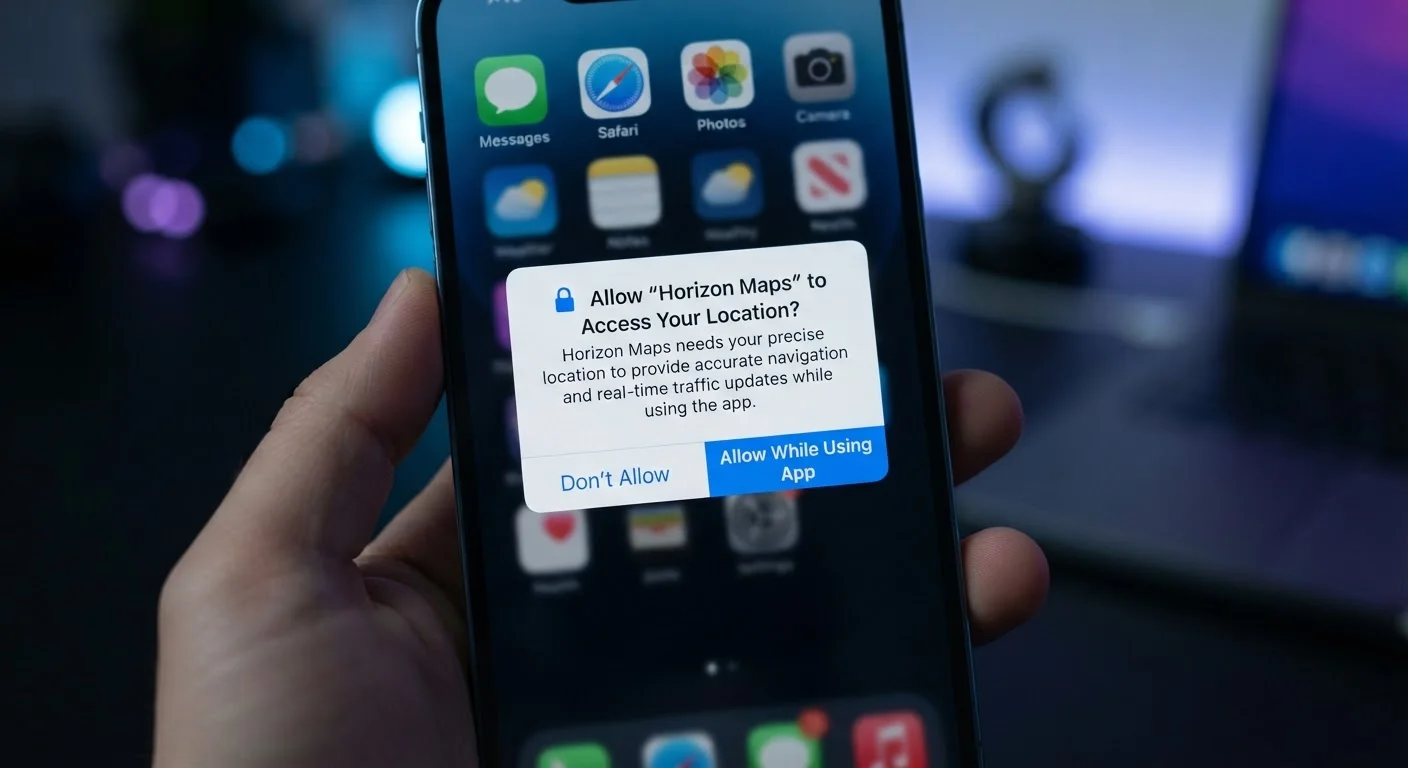
Location permissions deserve special attention because they come in tiers. Granting location 'Always' means the app can track your movements even when you're not using it. 'While Using the App' limits access to active sessions only — a much narrower grant that suits most use cases, including maps and weather apps.
For a deeper look at evaluating apps before they even reach the permissions stage, see our personal checklist for evaluating any new app.
Managing Permissions After You've Installed an App
You're not locked in once you tap 'Allow.' Both Android and iOS make it straightforward to review and adjust permissions at any time, and doing so periodically is good digital hygiene — especially for apps you've had for a while or rarely use.
On Android: Navigate to Settings → Apps → → Permissions. You'll see a full list of what's been granted and denied, with the ability to change each one individually.
On iOS: Go to Settings → and you'll see permission toggles directly on that screen.
It's also worth auditing which apps have location set to 'Always' — this is often the highest-impact adjustment you can make for both privacy and battery life.
45%
Apps requesting location access beyond core function
Research from privacy analytics firms has found that roughly 45% of mobile apps that request location data do so in ways not strictly required by their stated features.
3 tiers
Location permission levels available on modern smartphones
Both Android and iOS offer granular location choices — 'Never,' 'While Using the App,' and 'Always' — giving users meaningful control over background tracking.
Permissions are closely related to other consent questions you encounter in your digital life. For a comparison with how websites handle data access, see our explainer on why websites ask to store cookies. For a broader smartphone perspective, the Smartphone Tips & Tricks hub covers related practical topics.