

Key Takeaways
- Desktop slowdowns usually have specific, fixable causes rather than being inevitable signs of aging hardware.
- Startup programs, thermal buildup, and storage type are three of the biggest performance factors most users overlook.
- Adding RAM or switching to an SSD often delivers more noticeable improvement than any software tweak.
- Regular maintenance habits can extend desktop performance for years beyond typical expectations.
The Slowdown Isn't Random - It Has Causes
Most desktop owners notice the same pattern: a machine that felt fast when new gradually becomes sluggish opening apps, loading files, or starting up. It's easy to assume the hardware is simply wearing out, but that's rarely the full story. In most cases, a combination of software accumulation, thermal stress, and hardware bottlenecks are responsible - and many of those are addressable without replacing the whole machine.
Understanding which problem you're actually dealing with is the first step. See our detailed breakdown of what's happening inside a slow PC for a broader look at the underlying mechanics. The mistakes below are the most common ways users either ignore the real cause or apply the wrong fix.
Blaming the processor when startup programs are the real culprit.
Why it happens: When a computer boots slowly, the processor seems like the obvious suspect. In reality, dozens of apps set themselves to launch automatically at startup, consuming memory and CPU cycles before you've even opened anything.
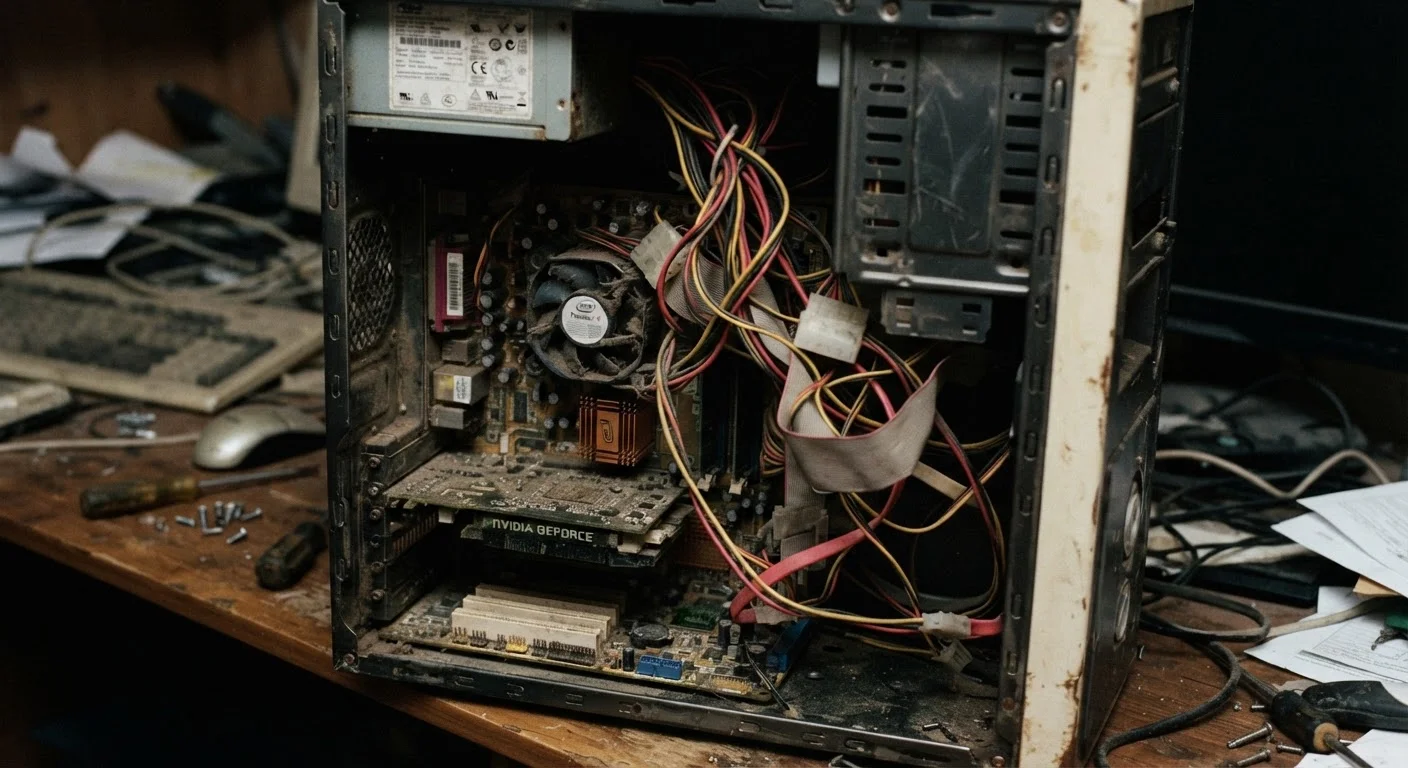
Ignoring dust and heat buildup inside the case.
Why it happens: Desktops sit in one place for years, and the internal fans steadily pull dust onto heatsinks and vents. Most users never open the case, so the buildup goes unnoticed until performance suffers.
Running the hard drive nearly full without realizing the performance impact.
Why it happens: Traditional mechanical hard drives (HDDs) slow down noticeably when they run low on free space, partly because the operating system needs room to manage temporary files. Users often don't monitor storage until something fails.
Assuming more RAM won't help because the machine is "old."
Why it happens: There's a common belief that older hardware can't be meaningfully improved. In practice, many desktops from the past decade can accept additional RAM, and insufficient memory is one of the leading causes of sluggish multitasking.
Continuing to use a mechanical hard drive as the primary drive when an SSD is an option.
Why it happens: Many users don't realize their desktop shipped with an HDD rather than an SSD, or they assume upgrading storage is complicated. Mechanical drives are dramatically slower for everyday read/write tasks compared to solid-state alternatives.
Running antivirus scans and updates during active work sessions.
Why it happens: Security software is set to automatic schedules by default, and those schedules don't always account for when the machine is actually in use. Full background scans consume significant CPU and disk resources.
Fixes That Actually Move the Needle
Once you've identified which of these mistakes applies to your situation, the right intervention becomes much clearer. Software cleanup and startup management are free and fast. Dust removal requires only a can of compressed air and fifteen minutes. Hardware upgrades - particularly adding RAM or replacing a mechanical hard drive with an SSD - typically deliver the most dramatic and lasting improvements.
3-5×
Typical boot speed improvement with SSD vs. HDD
Independent hardware testing consistently shows SSDs reducing cold-boot times by three to five times compared with traditional mechanical drives under equivalent conditions.
~30%
Performance drop from thermal throttling
Processors automatically reduce their speed when internal temperatures exceed safe thresholds - a condition commonly caused by dust-clogged heatsinks in aging desktops.
If you're unsure whether your bottleneck is RAM, storage, or the graphics processor, the guide to diagnosing the right upgrade walks through how to tell them apart before spending money. For building habits that prevent slowdown from returning, see long-term desktop maintenance habits - small, consistent actions that compound over time.
Don't Reinstall the OS as a First Step
A full operating system reinstall is sometimes recommended as a catch-all fix for a slow desktop, but it's usually unnecessary and risks data loss if not done carefully. Most slowdowns respond to targeted interventions - clearing startup items, adding RAM, or addressing thermal issues - without wiping the system. Exhaust the simpler options first, and always back up your data before any major system change.
One overlooked area: the browser. Heavy browser usage with many extensions and open tabs consumes RAM that other programs need. If your desktop feels slow mainly when browsing, targeted browser fixes may help without requiring any hardware changes at all.