

Key Takeaways
- Dust buildup inside a desktop case is a leading cause of overheating and premature component failure.
- Consistent software hygiene - including updates and storage management - prevents most slowdowns.
- Proper airflow and placement matter as much as internal cleaning for long-term thermal health.
- Simple habits practiced every few months are more effective than occasional emergency fixes.
- Monitoring temperatures and fan behavior gives early warning before hardware problems worsen.
Why Desktop Maintenance Is Different From Laptop Care
Desktop computers sit in one place, run for longer stretches, and pull more air through their cases than laptops do. That means they accumulate dust faster, run hotter components, and have more surface area inside for problems to develop quietly. The upside is that they're also much more accessible - most towers open with a side panel and a single screwdriver, making physical maintenance straightforward.
The habits that keep a desktop running well fall into two categories: physical upkeep (cleaning, placement, airflow) and software hygiene (updates, storage, startup management). Neglecting either one leads to the gradual slowdowns and instability that make a machine feel old before its time. For a direct comparison, laptop maintenance habits follow a meaningfully different logic.
Desktops vs. Laptops: Different Maintenance Needs
Desktop towers accumulate dust faster than laptops because they draw more air through larger vents over longer operating cycles. The good news is that desktops are also far easier to open and clean. If you also maintain a laptop, laptop-specific habits differ meaningfully from what works for a desktop.
Physical Maintenance: Heat Is the Enemy
Inside a desktop case, components generate significant heat that fans and heatsinks must continuously remove. When dust coats those cooling surfaces, heat builds up - and heat degrades semiconductors, shortens capacitor life, and triggers automatic slowdowns designed to protect the hardware.
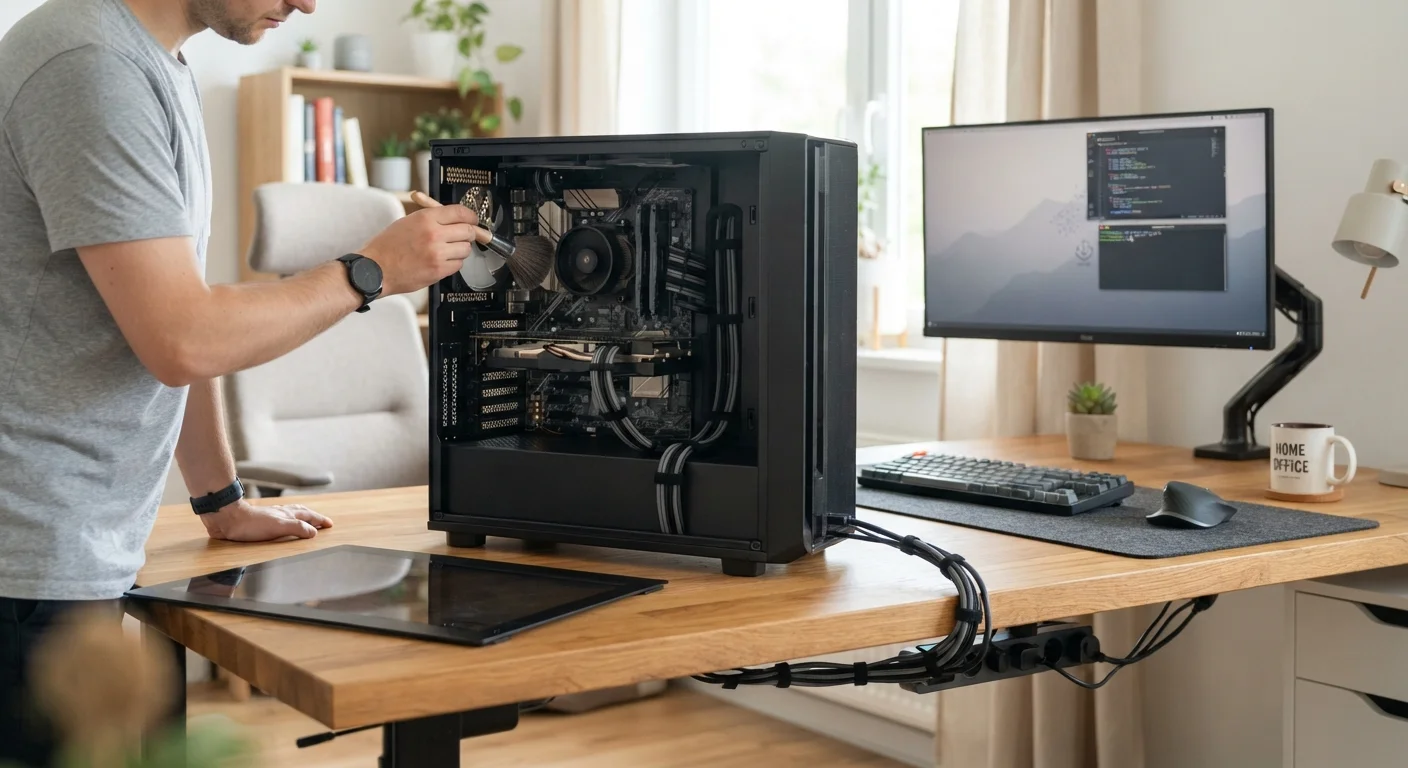
Clean the interior of your desktop case every three to six months.
Dust acts as an insulating blanket over components like the CPU cooler, graphics card, and power supply. Trapped heat shortens the lifespan of these parts and triggers throttling - where the processor slows itself down to avoid damage. Regular cleaning removes this risk before it compounds.
Position the desktop for adequate airflow and away from carpet.
A tower sitting directly on carpet draws fibers and dust into intake fans at a much higher rate than one placed on a hard surface. Blocking vents - even partially - forces components to work harder under heat stress.
Keep the operating system and drivers updated on a regular schedule.
Security patches close vulnerabilities that malware exploits to degrade performance or steal data. Driver updates, particularly for graphics and chipset components, fix bugs that can cause crashes or instability. Skipping updates for months at a time creates compounding risk.
Manage storage so the primary drive never exceeds about 80 percent capacity.
On traditional hard drives (HDDs), a nearly full disk fragments files and slows read/write operations noticeably. Even solid-state drives (SSDs) - which don't fragment - perform slower write operations when nearly full. Both benefit from breathing room. If you're unsure what's filling your drive, our guide on why desktops slow down explains storage's role in detail.
Audit startup programs and uninstall software you no longer use.
Every program set to launch at startup consumes memory and CPU time from the moment you log in. Over time, software installations accumulate and quietly consume resources. This is one of the most common reasons a desktop that felt fast a year ago now feels sluggish. For a complete view of this pattern, see habits that create computer problems.
Monitor temperatures periodically using free diagnostic software.
CPU and GPU temperatures that routinely exceed safe thresholds are a sign that cooling is failing - whether from dust, dried thermal paste, or a failing fan. Catching this early prevents permanent damage. Most components have safe operating ranges listed in their documentation.
After a physical cleaning, it's worth checking thermal paste on the CPU cooler. Thermal paste is a compound that fills microscopic gaps between the processor and its cooler, improving heat transfer. It dries out over several years and should be replaced when temperatures trend upward even after cleaning. This is a slightly more involved step, but it makes a measurable difference on older machines.
Software Habits That Prevent Most Common Problems
Software clutter is subtler than dust but just as damaging to performance. Programs install background services, schedule automatic tasks, and add themselves to startup sequences - often without making this obvious. The result is a machine that takes longer to boot, responds slowly, and runs fans harder than it should.
After an upgrade - whether hardware or a major OS update - the same discipline applies. Our guide on keeping a computer running well after an upgrade covers the specific checks worth running once new components are in place. And if you're looking for a broader checklist approach, a general maintenance checklist covers the full range of routine upkeep tasks.
“The majority of premature hardware failures in consumer desktops are preventable. Heat is the common thread - and heat is almost always a maintenance problem, not a design flaw.”
— iFixit Engineering Team, Hardware repair and documentation organization
Building a Routine That Actually Sticks
The most effective maintenance isn't heroic - it's consistent. A realistic schedule looks something like this:
- Monthly: Check for OS and driver updates; review storage usage.
- Every 3-6 months: Open the case and clear dust; review startup programs; run a disk cleanup.
- Annually: Check component temperatures under load; consider whether thermal paste needs replacing on older machines.
Tying these tasks to something recurring - the first weekend of a new season, for example - makes them easier to remember. A desktop that receives this kind of consistent attention will almost always outlast one that doesn't, regardless of the original hardware quality. For a deeper look at what's happening when performance degrades, understanding why desktops slow down is a useful companion read.