

Key Takeaways
- A bottleneck is the component holding back your entire system, not just itself.
- Adding a powerful new part doesn't help if a different, weaker component is the real limit.
- Identifying your bottleneck before upgrading prevents wasted spending.
- Common bottlenecks involve the CPU, RAM, storage drive, or network connection.
- The bottleneck in your system shifts depending on what task you're running.
Bottleneck
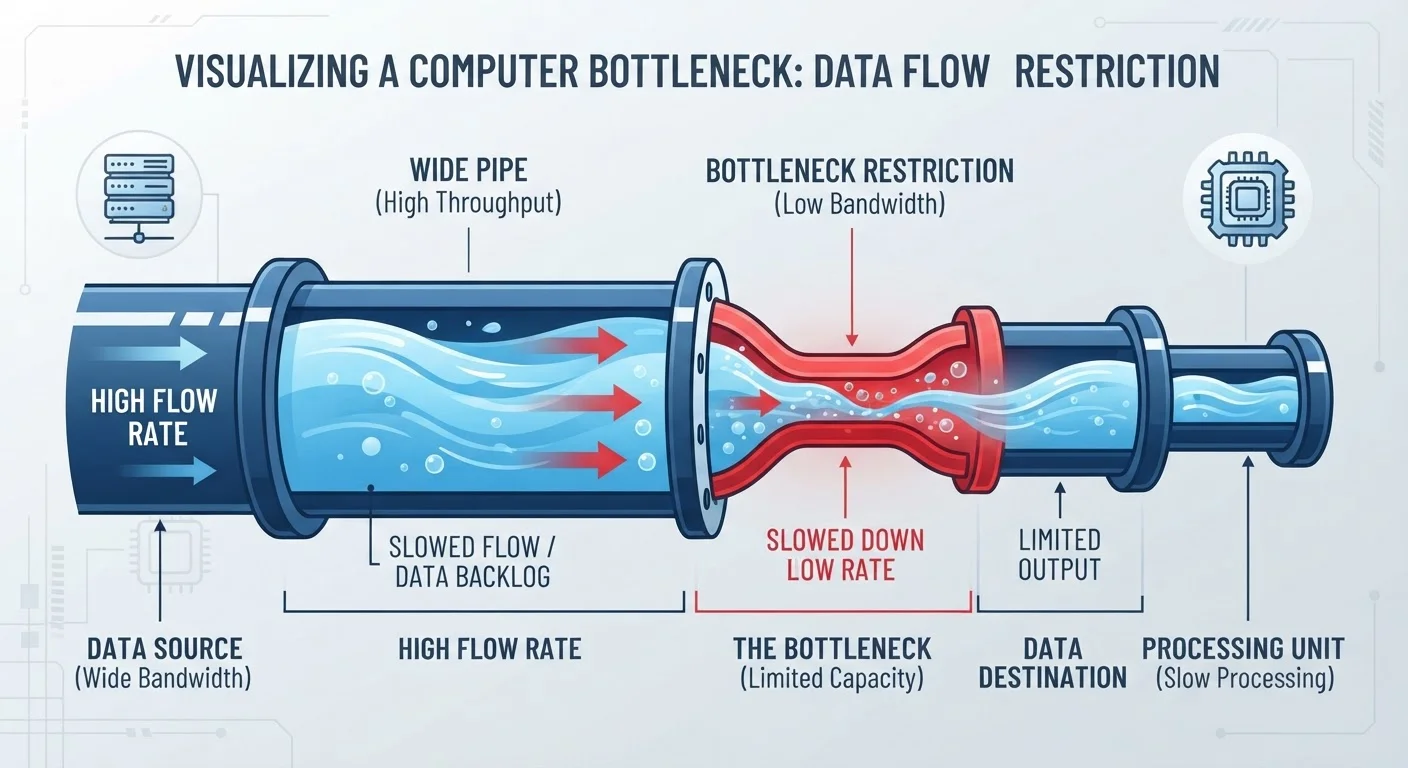
A bottleneck is any single component in a computer system that limits the performance of everything else. Because components work together, the slowest or least capable one sets a ceiling on what the whole system can achieve - no matter how powerful the others are.
In PC performance analysis, bottlenecking is often quantified as the percentage of time a faster component sits idle waiting for a slower one - commonly observed between a CPU and GPU in gaming workloads.
The Core Idea: Your System Is Only as Fast as Its Weakest Link
Think of your computer as an assembly line. Every station - the processor (CPU), memory (RAM), storage drive, and graphics card (GPU) - hands work to the next. If one station is dramatically slower than the rest, finished work piles up behind it. The faster stations go idle. Output suffers.
That slow station is the bottleneck. It doesn't matter how capable the other components are - the system's real-world speed is capped by whichever part can't keep up.
This isn't a flaw or a sign that something is broken. It's simply how interconnected systems work. Every computer has a bottleneck at any given moment; the question is whether it matters for what you're trying to do.
Every System Has a Bottleneck
It's tempting to treat 'bottleneck' as a problem that can be fully solved. In reality, when you remove one bottleneck, another component simply becomes the new limiting factor. The goal isn't elimination - it's making sure the bottleneck doesn't meaningfully hold back the work you actually do. See signs your computer is worth upgrading for help deciding when the constraint is serious enough to act on.
Why the Bottleneck Shifts Depending on What You're Doing
One of the most misunderstood aspects of bottlenecks is that they aren't fixed. The limiting component changes based on the task.
- Playing a graphically demanding game: The GPU is often the bottleneck. The CPU finishes its work quickly but has to wait for the GPU to render each frame.
- Running many browser tabs or productivity apps: RAM capacity or speed may become the limit, forcing your system to use the storage drive as temporary memory - a process called paging or swapping that is many times slower.
- Transferring large files or loading a complex project: An older mechanical hard drive or a slow SSD can be the constraint, even if your processor is fast.
- Streaming or video calls: Your internet connection or network hardware may be the bottleneck - entirely separate from your PC's internal components.
This is why diagnosing which component is bottlenecking your specific workload matters more than any general rule. For a deeper look at how network limitations follow the same logic, see why your internet feels slow even with fast broadband.
~10x
Speed difference: SSD vs. mechanical hard drive
Sequential read speeds on mainstream SSDs are generally around 10 times faster than traditional spinning hard drives, making storage a frequent bottleneck in older systems.
8 GB
Minimum RAM for comfortable modern multitasking
Many hardware guides and OS vendors cite 8 GB as the practical floor for running a modern operating system alongside typical productivity or browser workloads without heavy paging.
How to Spot a Bottleneck Before You Spend Anything
Before committing to an upgrade, observe your system while it's actually under the load that feels slow. Windows Task Manager (press Ctrl + Shift + Esc) shows live CPU, memory, disk, and network usage. Third-party tools provide more granular data including GPU load.
What you're looking for is a component consistently running near 100% while others are well below their limits. That high-utilization component is your current bottleneck.
Check Utilization Under Real Load
Don't check Task Manager while your computer is idle - open it while you're doing the exact task that feels slow. Bottlenecks only show up under the conditions that trigger them. A component that looks fine at rest may be fully maxed out the moment you start a game, video export, or large file transfer.
Once you've identified it, the upgrade path becomes much clearer. If you skip this step and upgrade a component that wasn't the constraint, performance often barely changes - a common and frustrating outcome covered in detail at upgrade decisions people commonly regret.
For help matching the diagnosis to the right fix, RAM, SSD, or GPU: which upgrade actually fixes your slow computer walks through the decision in practical terms. And before opening your case at all, seven things worth knowing before upgrading a desktop component covers compatibility realities that can trip up even careful buyers.