
Wi-Fi for Beginners: Everything You Need to Know About Wireless Networking at Home

Key Takeaways
- Wi-Fi uses radio waves to connect devices to the internet without physical cables.
- The Wi-Fi standard your router supports (Wi-Fi 5, 6, or 6E) affects speed and congestion handling.
- The 2.4 GHz band covers more distance; the 5 GHz band delivers faster speeds over shorter range.
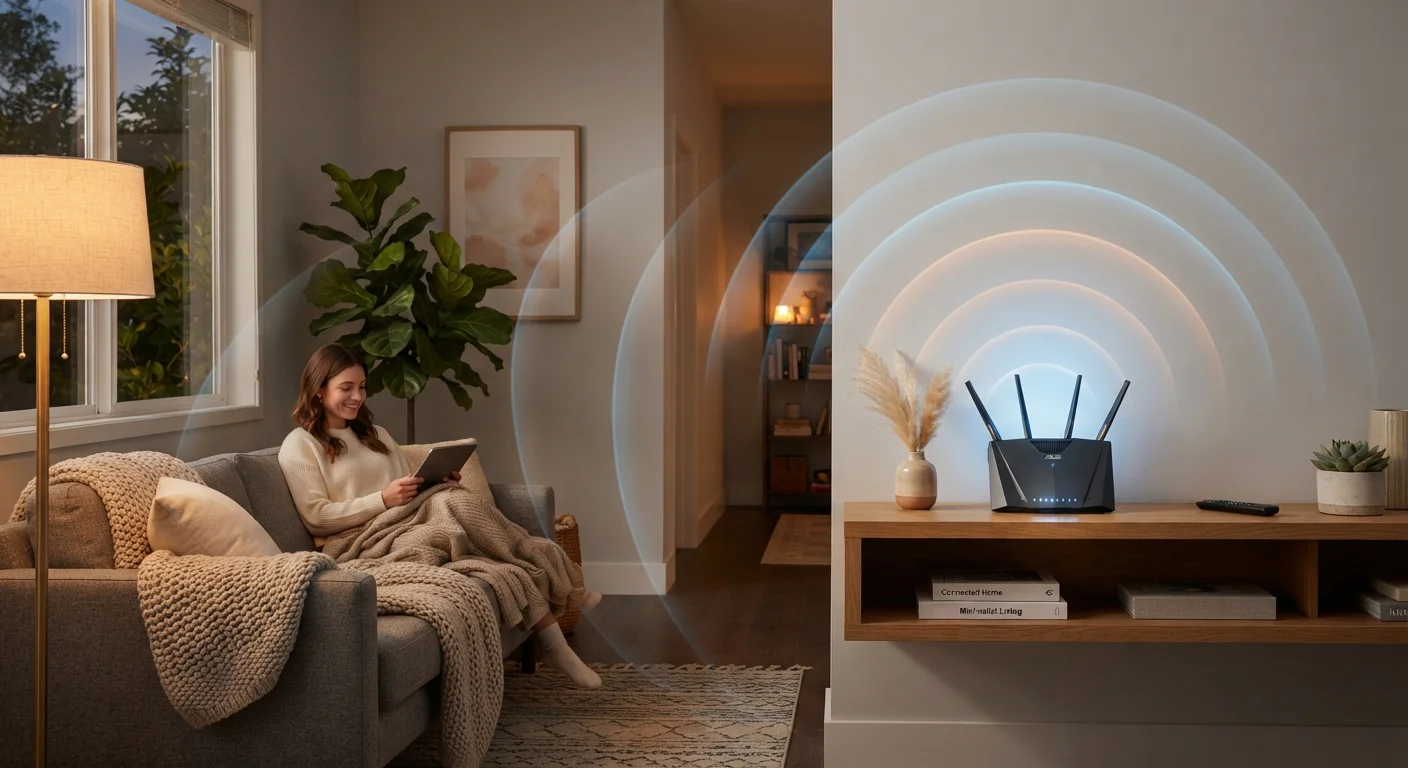
- Router placement is one of the biggest factors in your Wi-Fi signal quality.
- WPA3 encryption is the current security standard to look for when setting up or upgrading a router.
- Most connection problems can be resolved by restarting equipment or adjusting router placement.
Start here
What Wi-Fi Actually Is
Next
Wi-Fi Standards and What They Mean for You
Then
The 2.4 GHz vs. 5 GHz Bands Explained
When you're ready
Setting Up Your Home Wi-Fi Network
Troubleshoot
Common Wi-Fi Problems and How to Fix Them
Stay safe
Keeping Your Wi-Fi Secure
What Wi-Fi Actually Is
Wi-Fi is a wireless networking technology that transmits data using radio waves — the same general category of electromagnetic energy used by FM radio, only at different frequencies. A router receives data from your internet connection and broadcasts it wirelessly so that laptops, phones, smart TVs, and other devices can connect without cables.
The term Wi-Fi itself is a brand name managed by the Wi-Fi Alliance, the industry group that certifies compatible devices. Despite common belief, it is not an abbreviation — it was chosen as a catchy, consumer-friendly label for the underlying IEEE 802.11 wireless standards.
For a deeper look at the hardware involved — including modems and access points — see the Home Networking from the Ground Up guide.
Router
A device that receives your internet connection and distributes it — wirelessly or via cable — to devices in your home.
SSID
The name of a Wi-Fi network as it appears in your device's list of available connections. Short for Service Set Identifier.
Bandwidth
The maximum amount of data that can travel through a network connection at one time, often described in megabits per second (Mbps) or gigabits per second (Gbps).
WPA3
Wi-Fi Protected Access 3 — the current standard for encrypting data sent over a wireless network to prevent unauthorized access.
Mesh network
A Wi-Fi system that uses multiple hardware nodes spread around a home to create one unified, seamless wireless network with consistent coverage.
Frequency band
A range of radio frequencies used to transmit Wi-Fi signals. The two most common home bands are 2.4 GHz and 5 GHz, each with different range and speed characteristics.
Wi-Fi Standards and What They Mean for You
Wi-Fi has gone through several generations, each delivering faster speeds and better handling of many simultaneous devices. The Wi-Fi Alliance now uses simplified generation names alongside the technical IEEE designations:
- Wi-Fi 4 (802.11n) — widely supported, found in older devices and budget routers
- Wi-Fi 5 (802.11ac) — significantly faster, still common in homes today
- Wi-Fi 6 (802.11ax) — improved speed and efficiency, especially in device-dense environments
- Wi-Fi 6E — extends Wi-Fi 6 into the 6 GHz band for less interference
- Wi-Fi 7 (802.11be) — the newest generation, offering multi-link operation and very high theoretical throughput
In practice, the standard matters most when you have many devices connected at once, stream high-resolution video, or work from home on video calls. For light browsing on a handful of devices, Wi-Fi 5 remains perfectly capable. Your network speed is always limited by whichever component in the chain — router, device, or internet plan — is oldest or slowest.
The 2.4 GHz vs. 5 GHz Bands Explained
Modern routers broadcast on two radio frequency bands, each with a different trade-off between range and speed.
| Band | Range | Speed | Best for |
|---|---|---|---|
| 2.4 GHz | Longer | Lower | Devices far from router, smart home gadgets |
| 5 GHz | Shorter | Higher | Streaming, gaming, devices near the router |
The 2.4 GHz band penetrates walls more easily and reaches farther, but it is also used by many other household devices — microwaves, baby monitors, neighboring routers — which creates interference. The 5 GHz band is less congested and faster, but its signal weakens more quickly over distance and through obstacles.
Most current routers offer both bands under the same network name, automatically directing devices to the appropriate one. If yours lists them separately, connect speed-sensitive devices to the 5 GHz network when they are within range. For context on how radio signals and routers work together, see Wi-Fi Explained.
Setting Up Your Home Wi-Fi Network
Getting a home network running typically involves just a few steps:
- Connect your modem to your internet service provider's incoming line (coaxial cable, fiber terminal, or phone line depending on your service type).
- Connect your router to the modem using an Ethernet cable, or use a combined modem-router unit.
- Power on both devices and wait for indicator lights to show a stable connection — usually a solid or slow-blinking light.
- Access the router's admin interface by typing the router's IP address (commonly 192.168.1.1 or printed on the device label) into a browser, then follow the setup wizard.
- Set a unique network name (SSID) and a strong password using WPA2 or WPA3 encryption.
Where to Place Your Router
Position your router as close to the center of your home as possible, and raise it off the floor — a shelf or countertop works well. Avoid placing it inside cabinets, behind TVs, or next to microwave ovens. Signal radiates outward in all directions, so a central location minimizes the distance to any given room.
Router placement has an outsized effect on coverage. Centrally located, elevated positions away from thick concrete walls and large metal appliances deliver the most consistent signal. For homes where a single router leaves dead zones, a mesh Wi-Fi system distributes coverage more evenly throughout the space.
Common Wi-Fi Problems and How to Fix Them
Most Wi-Fi frustrations have straightforward explanations and solutions:
- Slow speeds
- Move closer to the router, switch to the 5 GHz band, or restart the router. If speeds remain low across all devices, the issue may be with your internet plan rather than Wi-Fi itself.
- Intermittent drops
- Interference from neighboring networks or household electronics is a common culprit. Changing the router's Wi-Fi channel in the admin settings can help. Restarting the router and modem resolves many temporary glitches.
- Dead zones
- Areas where signal cannot reach need either a Wi-Fi range extender or a mesh system. For a comparison of wired alternatives, see Wired Ethernet vs. Wireless Wi-Fi.
- Too many devices
- Older routers can struggle with a large number of simultaneous connections. Wi-Fi 6 routers handle device-dense environments more efficiently.
Don't Ignore Router Restarts
Routers that run continuously for months without a restart can develop memory issues that degrade performance. A simple power cycle — unplugging for 30 seconds and plugging back in — clears temporary data and often restores normal speeds. Many routers also allow you to schedule automatic restarts in their admin settings.
Keeping Your Wi-Fi Secure
An unsecured home network can expose every connected device to outside threats. A few foundational steps significantly reduce that risk:
- Use WPA3 encryption if your router supports it, or WPA2 at minimum. Never leave the network open or use the outdated WEP protocol.
- Change the router's default admin username and password before doing anything else — default credentials are publicly documented and easy to exploit.
- Keep router firmware updated. Manufacturers release patches to fix security vulnerabilities, and most modern routers can apply updates automatically.
- Set up a guest network for visitors and smart home devices, keeping them isolated from your main devices.
Security doesn't stop at the router. For a thorough walkthrough of hardening your entire home network, the Home Network Security guide covers every layer in plain language.
Home Network Security: A Complete Foundation for Everyday Users
A plain-language guide to securing every layer of your home network, from router admin settings to guest Wi-Fi configuration.
Everything You Need to Know About Home Networking
Expands beyond Wi-Fi to cover modems, mesh systems, and network troubleshooting for a complete picture of home connectivity.