

Key Takeaways
- Your smartphone runs on one of two major operating systems — iOS or Android — each with its own ecosystem of apps and services.
- Creating a dedicated account (Apple ID or Google Account) is the foundation for nearly everything your phone does.
- App permissions control what data each app can access — reviewing them takes minutes and meaningfully protects your privacy.
- Storage fills faster than most new users expect; cloud backup and periodic cleanup prevent headaches later.
- A screen lock, strong account password, and two-factor authentication are the three most impactful security steps you can take immediately.
Start here
Understanding What Your Smartphone Actually Is
Next
Setting Up Accounts and Your First Sign-In
Then
Permissions, Privacy, and What Apps Can Access
When you're ready
Managing Storage Before It Becomes a Problem
Finally
Building Good Security Habits from the Start
Understanding What Your Smartphone Actually Is
A smartphone is essentially a pocket-sized computer that also makes calls. It runs a full operating system, connects to the internet over cellular networks and Wi-Fi, and runs downloadable software called apps. Understanding this framing matters because every setup decision you make — from accounts to storage to security — flows from the fact that you're managing a powerful personal computer, not just a phone.
Two operating systems (OS) dominate the market: iOS, which runs exclusively on Apple iPhones, and Android, which runs on devices from many manufacturers. Your choice of OS shapes which apps you can use, how your data syncs, and how software updates are delivered. Neither is objectively superior for all users — they represent different design philosophies and ecosystems. For a broader look at how smartphones compare to other personal computing devices, see our Laptop Basics hub.
Setting Up Accounts and Your First Sign-In
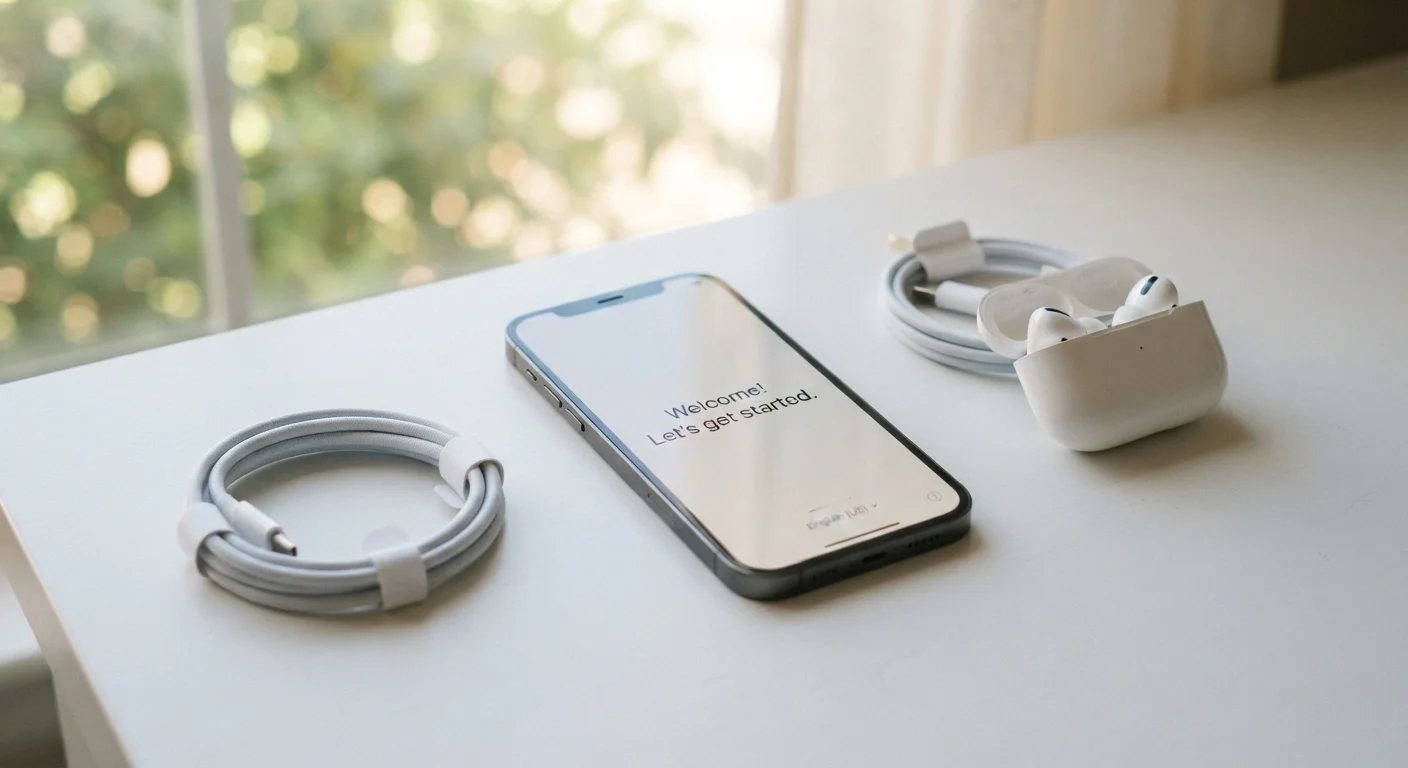
When you power on a new phone, the first substantive step is linking it to an account. On an iPhone, that means an Apple ID. On an Android device, it means a Google Account. These accounts are not optional add-ons — they authenticate your identity to the device's app store, enable data backup, and tie together services like contacts, calendar, and cloud storage.
Use a strong, unique password when creating or linking your account — not a password you reuse elsewhere. If you already have an existing account from a previous device, signing in during setup will typically offer to restore your previous apps and settings automatically.
Use a dedicated email for your phone account
Consider creating a dedicated email address specifically for your Apple ID or Google Account if you don't already have one you use primarily for personal matters. Keeping your phone account separate from work or shared email addresses makes account recovery cleaner and reduces your exposure if one account is compromised.
Once your primary account is configured, the setup wizard will prompt you through several more steps: connecting to Wi-Fi, enabling location services, and configuring Siri or Google Assistant. You can skip or defer most of these — none are required to make the phone functional. For a more detailed walkthrough of the full setup process, Setting Up a New Smartphone the Right Way covers configuration step by step.
Permissions, Privacy, and What Apps Can Access
Every app you install may request access to hardware and data on your phone — your camera, microphone, location, contacts, or photo library. These requests are called app permissions, and they are one of the most important privacy controls available to you.
A navigation app legitimately needs location access. A simple flashlight app does not. When an app requests a permission that doesn't match its purpose, that's worth pausing over. Both iOS and Android let you grant permissions selectively — you don't have to accept all or nothing.
Don't grant permissions reflexively
Many apps request permissions during first launch, and it's easy to tap 'Allow' without reading the prompt. Take a moment to consider whether the permission makes sense for what the app actually does. Granting unnecessary access to your microphone, location, or contacts is difficult to undo once you've forgotten you allowed it.
You can audit and adjust permissions at any time through your phone's Settings menu. On iOS, go to Settings > Privacy & Security. On Android, look for Settings > Privacy > Permission Manager (exact path varies by manufacturer). Make this a habit after installing new apps. For a deeper introduction to security and permissions together, see A First-Time Smartphone Owner's Guide to Staying Secure.
Managing Storage Before It Becomes a Problem
Smartphone storage is fixed at purchase — you cannot add more internal memory on most modern devices. Photos, videos, downloaded apps, and cached data accumulate quickly, and a nearly full device typically slows down and struggles to install updates.
Two strategies help: cloud backup and periodic cleanup. Cloud backup (via iCloud on iOS or Google Photos/Google One on Android) automatically copies your photos and contacts to remote servers, freeing local space. Periodic cleanup means reviewing installed apps every few months and removing ones you no longer use.
Check your storage status by going to Settings and searching for Storage on either platform. The breakdown it shows — how much space apps, photos, and system files each consume — is more informative than the single total number. When you're ready to explore apps in depth, A Complete Introduction to Managing Apps on Your Smartphone walks through installing, organizing, and removing apps thoroughly.
Building Good Security Habits from the Start
Three security measures make the largest practical difference for new smartphone owners:
- Screen lock: Use a PIN of at least six digits, a strong passcode, or biometric authentication (fingerprint or face recognition). A four-digit PIN offers far less protection than it appears.
- Strong account password: Your Apple ID or Google Account password protects everything tied to your phone. Make it unique and complex — a password manager can help you keep track of it.
- Two-factor authentication (2FA): Enabling 2FA on your primary account means that even if someone learns your password, they still can't access your account without a second verification step. Both Apple and Google support this natively.
Keeping your phone's operating system updated is equally important. OS updates frequently patch security vulnerabilities — delaying them leaves known weaknesses in place. Enable automatic updates if your device supports them. For more on the app ecosystem and next configuration steps, The App Layer That Makes It Yours is a natural next read. You can also browse broader everyday tips at the Smartphone Tips & Tricks hub.