

Key Takeaways
- Typing in the address bar and using a search engine look similar but route your data differently.
- Address bar queries are typically sent to your browser's default search engine and may be logged by your browser vendor.
- Visiting a search engine directly gives you more control over which service processes your query.
- Your choice of browser and default search engine together determine who sees your search data.
- Changing your default search engine is one of the simplest privacy adjustments available.
Our Verdict
Both the address bar and a dedicated search engine page can reach the same results, but they involve different data-handling chains. Using the address bar is faster and more convenient, while navigating directly to a search engine gives you slightly more transparency and control over which service processes your input. For most users, the practical difference is small — but understanding the distinction helps you make deliberate choices about your browsing habits.
| Best for | Recommended |
|---|---|
| Speed and everyday convenience | Browser address bar |
| Explicit control over which search service receives your query | Direct search engine visit |
| Users who want to minimize browser vendor data collection | Direct search engine visit with a privacy-focused provider |
Two Inputs, Two Different Journeys
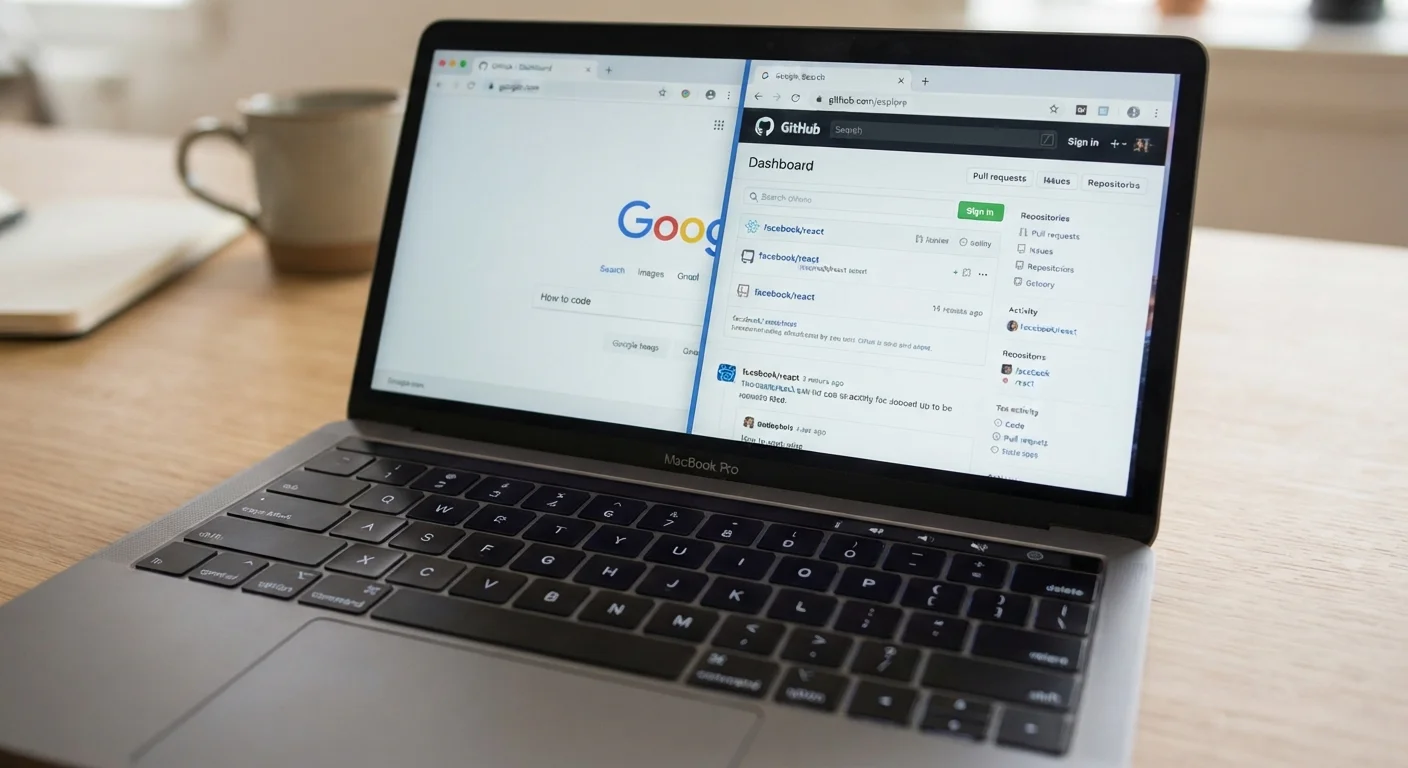
When you type something into your browser's address bar — also called the omnibox in Chrome, or simply the location bar in Firefox — the browser itself interprets what you've entered before anything leaves your device. If what you typed looks like a complete web address (such as nytimes.com), the browser navigates there directly. If it looks like a search phrase, the browser forwards it to whichever search engine is set as your default.
That forwarding step is where things get interesting. The browser vendor — the company behind Chrome, Edge, Firefox, or Safari — may log that query suggestion interaction on their end, even before the search engine ever sees it. Autocomplete predictions, for instance, are often generated by sending partial keystrokes to a remote server in real time.
By contrast, when you open a new tab, navigate directly to a search engine's website, and type your query there, the browser plays a more passive role. The query goes straight from your typed input to the search engine's servers, without the browser's autocomplete layer processing it first. As our article on what your browser's address bar can really do explains, the omnibox is far more active than it appears.
What Each Approach Means for Your Privacy
Privacy implications split across two separate relationships: your relationship with the browser vendor and your relationship with the search engine.
| Address Bar Query | Direct Search Engine Visit | |
|---|---|---|
| Who processes keystrokes | Browser vendor (autocomplete) | Search engine only |
| Real-time data sent while typing | Often yes, for suggestions | Only if search engine offers it |
| Control over search provider | Set via browser default | Chosen each time you visit |
| Convenience | Very high — no extra navigation | Slightly lower — requires direct visit |
| Transparency of data flow | Two parties involved | One party involved |
When you use the address bar, both parties may receive data about you. The browser vendor sees your keystrokes as you type (for autocomplete), while the search engine receives your final submitted query. When you go directly to a search engine, only the search engine is involved in handling your typed query.
It's worth noting that switching your browser's default search engine — typically found under Settings → Search — is one of the fastest ways to change which company receives your queries from the address bar. For a deeper look at what your browser collects beyond search queries, see everything your browser stores about you.
Change Your Default Search Engine in Minutes
On most browsers, go to Settings and look for a 'Search engine' or 'Search' section. You'll see a dropdown listing available options. Selecting a different provider there changes where all your address-bar queries go — no extensions or additional software needed. Review this setting whenever you install a new browser or perform a major update, as defaults can reset.
One often-overlooked factor: DNS lookups. Whether you use the address bar or a search engine, the domain names your browser resolves are visible to your internet provider unless you've enabled DNS over HTTPS. Our guide on DNS over HTTPS vs. traditional DNS covers exactly what changes when you turn it on.
Practical Habits That Put You in Control
Understanding this distinction leads to a few simple, actionable adjustments:
- Audit your default search engine. Check which search engine your browser forwards address-bar queries to. Most browsers let you change this in one or two settings screens.
- Disable search suggestions if privacy is a priority. Most browsers allow you to turn off real-time autocomplete, which stops partial keystrokes from being sent to remote servers as you type.
- Use private browsing thoughtfully. Private or incognito mode prevents your browser from storing history locally, but it does not stop your search queries from reaching the search engine or your ISP from seeing which sites you visit. Our article on what private browsing actually hides breaks this down clearly.
- Consider bookmarking your preferred search engine. Navigating to it directly, rather than relying on the address bar's forwarding, keeps the browser vendor out of the query path.
None of these changes require technical expertise. Each takes under a minute to implement and gives you a clearer picture of where your data travels every time you search.