

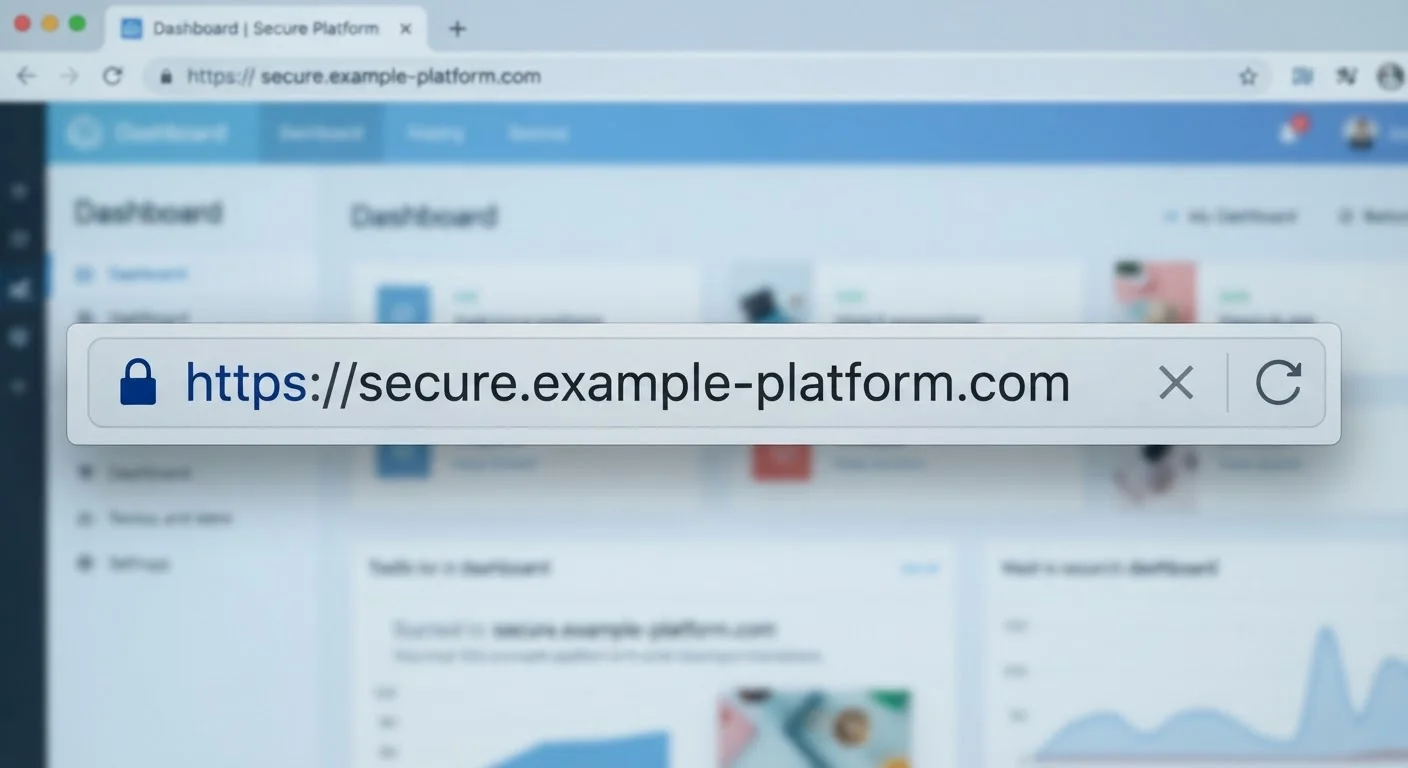
Key Takeaways
- HTTPS encrypts data in transit between your browser and the server — HTTP does not.
- The padlock icon confirms encryption, not that the site itself is legitimate or safe.
- Phishing sites routinely use HTTPS, so the padlock alone is never a trust signal.
- Most modern browsers flag HTTP sites as 'Not Secure' in the address bar.
- Always check the full domain name — not just the padlock — before entering sensitive information.
Option A
HTTP (HyperText Transfer Protocol)
The original, unencrypted web standard.
Best for: Legacy internal systems or non-sensitive static content where encryption isn't a requirement.
Option B
HTTPS (HTTP Secure)
The encrypted, privacy-preserving version of HTTP.
Best for: Any site that handles logins, personal data, payments, or anything a user wouldn't want intercepted.
If you're entering a password, payment details, or personal data
HTTPS (HTTP Secure)
HTTP transmits your data as plain text that anyone on the same network can read. HTTPS encrypts that data so only the intended server can decode it.
If you encounter a site with a padlock and want to know if it's trustworthy
Neither — verify the domain separately
HTTPS only tells you the connection is encrypted, not that the site is who it claims to be. Always confirm the full domain name matches the organization you expect.
If you're using public Wi-Fi and browsing general content
HTTPS (HTTP Secure)
On open networks, HTTP traffic is especially easy to intercept. HTTPS substantially reduces that exposure even when the Wi-Fi itself is insecure.
What HTTP and HTTPS Actually Do
HTTP is the foundational protocol that browsers and web servers use to exchange information — every page load, form submission, and image request travels over it. When you type a web address and hit enter, HTTP is the system coordinating what gets sent and received.
HTTPS adds a layer on top of that: TLS encryption (Transport Layer Security, formerly called SSL). This scrambles the data flowing between your device and the server so that even if someone intercepts it mid-transit — on a coffee shop network, for instance — they can't read it. Your login credentials, credit card numbers, and messages stay protected in transit.
Without HTTPS, that same data moves as plain, readable text. Anyone with basic network tools and access to the same connection could capture and read it — a technique known as a man-in-the-middle attack.
| Criterion | HTTP | HTTPS |
|---|---|---|
| Data encryption in transit | None — plain text | TLS encryption applied |
| Browser indicator | "Not Secure" warning | Padlock or security icon |
| Susceptibility to interception | High on shared networks | Substantially reduced |
| Confirms site legitimacy | No | No — encryption only |
| Common today | Declining — flagged by browsers | Standard for most sites |
| Used by phishing sites | Yes | Yes — certificates are free |
What the Padlock Does — and Doesn't — Mean
Most browsers display a padlock icon when a site uses HTTPS. It's a useful shorthand, but it has a specific, limited meaning: your connection to that site is encrypted. It says nothing about what the site does once it receives your data, who owns it, or whether it's legitimate.
This distinction matters enormously for security. Phishing sites — fake pages designed to steal your credentials — routinely use HTTPS. Obtaining a basic TLS certificate is free and takes minutes, so the padlock is no barrier to bad actors. Research has consistently found that a significant share of phishing sites operate over HTTPS.
Certificate Types Don't Guarantee Identity Verification
TLS certificates come in different validation levels. A Domain Validation (DV) certificate — the free kind issued by services like Let's Encrypt — only confirms that the certificate holder controls the domain. It does not verify who that holder actually is. Extended Validation (EV) certificates involve more rigorous identity checks, but even these are not universally required. The padlock reflects certificate presence, not validation depth.
The practical takeaway: before entering any sensitive information, look at the full domain name in the address bar, not just the padlock. A legitimate bank URL looks like https://www.yourbank.com — not https://yourbank.login-secure.com. For more on evaluating URLs before you click, see our guide to verifying suspicious links.
How Browsers Signal the Difference Today
Modern browsers have largely stopped treating HTTP as a neutral default. Chrome, Firefox, Safari, and Edge now label HTTP sites as "Not Secure" directly in the address bar. Some browsers block certain content — like form submissions — over HTTP entirely.
HTTPS sites show a padlock, though Chrome has shifted toward a simpler "tune" icon that opens security details on click rather than implying unqualified safety with a lock image. The evolution reflects the fact that HTTPS is now the baseline expectation, not a premium feature.
Encryption during transit is just one layer of the broader security picture. How a service stores and handles your data after it arrives matters just as much — a point explored in depth in our article on what encryption labels on cloud services actually tell you. Similarly, if you want to understand how your DNS queries — the lookups that translate domain names into addresses — can expose browsing habits even on HTTPS sites, our piece on DNS over HTTPS vs. traditional DNS explains the gap.
~85%
Web traffic now loaded over HTTPS
Google's transparency report has tracked HTTPS adoption across Chrome page loads, consistently showing the majority of traffic is now encrypted.
~80%
Phishing sites using HTTPS
The Anti-Phishing Working Group (APWG) and similar researchers have noted that the majority of phishing pages operate over HTTPS, undermining the padlock as a safety signal.
The bottom line: HTTPS is necessary but not sufficient. Use it as a floor, not a ceiling, for your security judgment.