

Key Takeaways
- Bookmarks work best for pages you'll return to regularly or want to keep long-term.
- Reading lists are designed for temporary saves — articles you intend to read soon.
- Pinned tabs suit sites you visit multiple times every day, like email or a work dashboard.
- Using the wrong tool leads to digital clutter and pages you never actually revisit.
- A brief weekly review of each category prevents saved content from piling up unused.
Browser Saving Tools
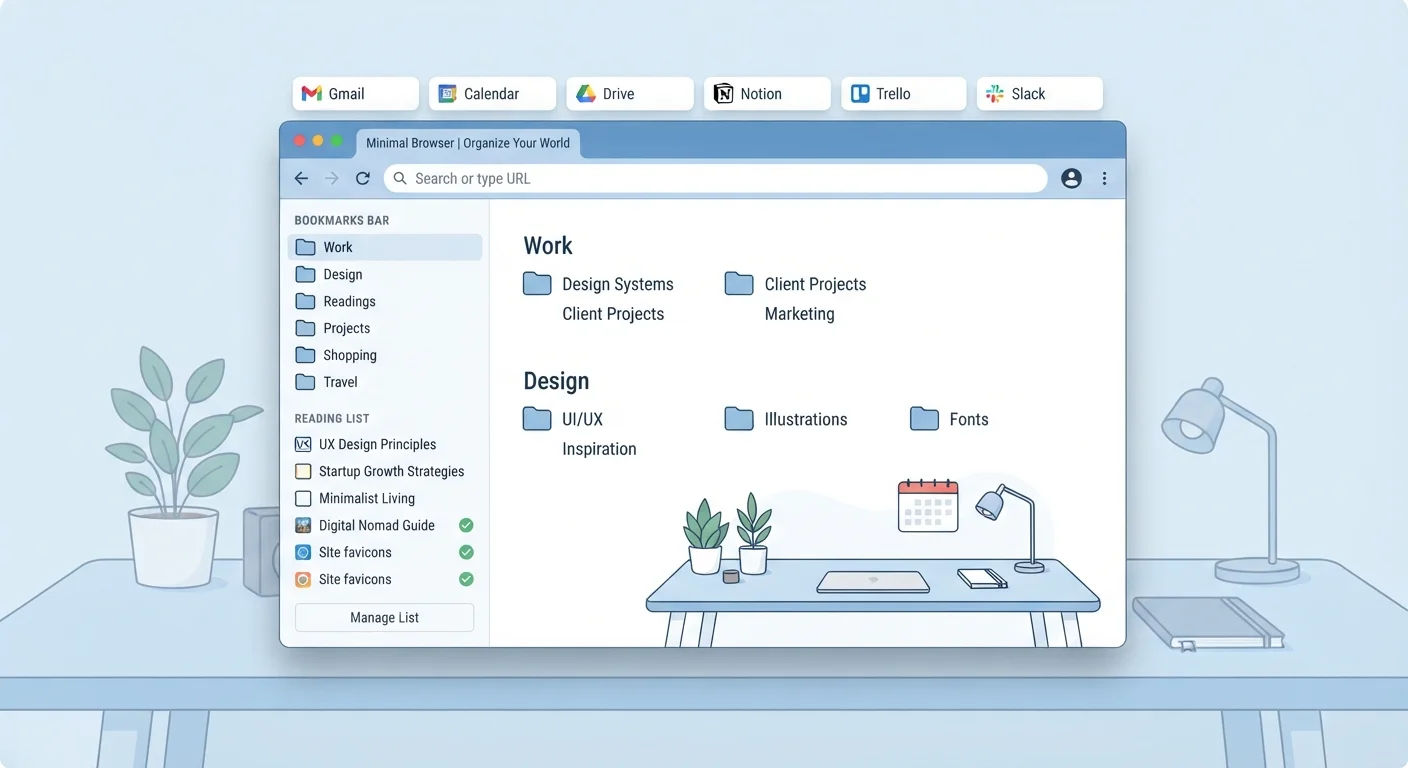
Bookmarks, reading lists, and pinned tabs are three different ways your browser lets you hold onto web pages. Each tool serves a distinct purpose: bookmarks are for permanent reference, reading lists are for pages you plan to read soon, and pinned tabs keep sites you visit constantly open and ready. Knowing which to use — and when — keeps your browser organized rather than cluttered.
Reading lists are typically stored locally or synced via your browser account, separate from bookmarks, and some browsers (like Safari and Edge) surface them in a dedicated sidebar panel.
Why Saved Pages Go Nowhere
Most people have saved a link with good intentions and never returned to it. Bookmarks folders grow without limit, tabs multiply until the icons are invisible, and reading lists sit unread. The core problem isn't laziness — it's using the wrong tool for the job.
Browsers offer three distinct saving mechanisms, and each one is built around a different intent. Mixing them up creates a disorganized mess. Understanding the purpose of each tool takes minutes; acting on that understanding saves significant frustration. For broader context on keeping your digital space lean, the habits covered in keeping your phone organized without drowning in downloads apply equally well to browser clutter.
~60%
Bookmarks never revisited after saving
Research into browser behavior consistently finds that the majority of saved bookmarks are never opened again, underscoring the need for intentional saving habits.
8–10
Average open tabs per browser session
Browser usage studies indicate most desktop users keep between 8 and 10 tabs open at once, many of which serve as informal bookmarks for pages they haven't yet closed.
Bookmarks: Your Permanent Reference Library
A bookmark is a saved link you expect to return to more than once — or want to preserve indefinitely. Think of it as a personal library: a recipe you make regularly, a government form you need annually, documentation for a tool you use at work. Bookmarks are most useful when organized into named folders so you can find things quickly.
Where people go wrong is saving everything to bookmarks. That turns your library into a junk drawer. A good rule of thumb: if you wouldn't search for the page again within a month, don't bookmark it. If you want the page once, just read it. If you want it soon but haven't yet, that's what reading lists are for.
Create a Folder Structure Before You Save
Before your bookmark bar becomes a single long list, set up three to five broad folders — such as Work, Reference, Recipes, and Shopping. Save new bookmarks directly into a folder rather than the bar itself. This small habit prevents the disorganized sprawl that makes bookmarks feel useless.
Reading Lists: A Temporary Queue, Not a Graveyard
A reading list is designed for pages you intend to consume soon — typically within a day or a week. It functions like an inbox: items go in, you process them, and then you clear them. Safari, Edge, and Chrome all offer native reading list panels; the key difference from bookmarks is the implied temporariness.
The practical benefit is separation. Your bookmark folders stay uncluttered by articles you haven't read yet, while your reading list acts as a focused queue. If an article from your reading list turns out to be genuinely worth keeping, then move it to a bookmark folder. This two-stage system prevents accumulation. Pair reading lists with browser reading mode for a cleaner, distraction-free experience when you do sit down to read.
Pinned Tabs: Instant Access to Daily Destinations
A pinned tab is a tab that stays open permanently at the left edge of your tab bar, shrunk to just a favicon. It's the right tool for sites you visit multiple times every day — your email, a team chat platform, a calendar, or a work dashboard. Pinning removes the need to retype an address or hunt through bookmarks each time.
The discipline here is restraint. Pinning more than four or five sites dilutes the benefit and contributes to memory load. As noted in our article on how open tabs slow down your browser, every open tab — pinned or not — consumes resources. Audit your pinned tabs the same way you'd audit a home screen: if you haven't clicked one in two weeks, unpin it and bookmark it instead.
Building a Sustainable Saving Habit
The goal isn't a perfect system — it's a consistent one. A simple weekly habit covers most needs: spend five minutes clearing your reading list (read, bookmark, or delete each item), glance at your pinned tabs and remove any that have gone stale, and periodically merge or rename bookmark folders that have grown unclear.
Speed matters here. Browser keyboard shortcuts can make saving and navigating faster — most browsers let you bookmark a page with Ctrl+D (or Cmd+D on Mac) without lifting your hands from the keyboard. Small efficiencies like this reduce the friction that causes people to abandon good habits. The result is a browser that actually helps you find what you need, rather than one that buries it.
“The value of a saved link is determined entirely by whether you can find it when you need it — not by how many links you've saved.”
— Information Architecture Principle, Widely cited concept in digital organization and UX design literature